
1) How Snowflake’s ‘Sharing Streamlit in Snowflake’ feature lets you share Streamlit apps with business users cleanly, securely, and without exposing Snowflake internals.
Imagine you’ve built a stunning Streamlit dashboard on top of your Snowflake warehouse, delivering critical business insights to your stakeholders. You’re ready to go live, but you face a common hurdle: Snowflake’s standard Snowsight interface is built for data engineers, not business users. Navigating worksheets and database schemas is a technical hurdle that stakeholders simply don’t need to see.
How do you share the insight without overwhelming the user with a technical interface?
This is where Snowflake’s ‘Sharing Streamlit in Snowflake’ feature comes in. It provides a dedicated App-Viewer URL that changes the entire user experience; when you view an app from its app-viewer URL, the app is displayed without any part of the Snowsight interface.
By combining this publishing feature with the ability to restrict user interfaces to Streamlit only, you transform Snowflake into a professional app portal. You are delivering an interface designed specifically for the people who need those insights most, ensuring they interact only with the dashboard rather than the broader technical environment.
2) Creating the STREAMLIT_DEVELOPER Role
Building Streamlit apps requires more than just read access , developers need the ability to create databases, tables, stored procedures and the Streamlit objects themselves. We create a STREAMLIT_DEVELOPER role to handle these permissions.
The setup splits across two roles because of Snowflake’s privilege model. SECURITYADMIN handles role and user management, but account-level privileges like CREATE DATABASE must be granted through SYSADMIN. We use SECURITYADMIN first to create the role, then switch to SYSADMIN to assign the necessary warehouse and compute pool access, a pattern that respects Snowflake’s separation of duties without requiring full ACCOUNTADMIN access.
The final step dynamically assigns the role to the currently logged-in user, eliminating the need to manually specify usernames. Whoever runs the script gets the developer role, automatically making the role assignment seamless.
-- Creates STREAMLIT_DEVELOPER role using SECURITYADMIN for role/user grants and ACCOUNTADMIN for account-level privilege grants.

-- ============================================================
-- Block 1: SECURITYADMIN — role creation & user assignment
-- ============================================================
USE ROLE SECURITYADMIN;

CREATE ROLE IF NOT EXISTS STREAMLIT_DEVELOPER
COMMENT = ' Role for developers who
build Streamlit apps.
Grants account-level privileges
to create databases,
tables, stored procedures,
and Streamlit objects.';

-- ============================================================
-- Block 2: SYSADMIN — account-level privilege grants
-- (SECURITYADMIN cannot issue GRANT ... ON ACCOUNT)
-- ============================================================
USE ROLE SYSADMIN;

GRANT CREATE DATABASE  ON
ACCOUNT TO ROLE STREAMLIT_DEVELOPER;

GRANT USAGE ON WAREHOUSE <WAREHOUSE-NAME>
TO ROLE STREAMLIT_DEVELOPER;

GRANT USAGE ON COMPUTE POOL
SYSTEM_COMPUTE_POOL_CPU
TO ROLE STREAMLIT_DEVELOPER;

-- Dynamically assign the role to the currently logged-in user
USE ROLE SECURITYADMIN;

SET v_curr_user  = CURRENT_USER();
SET v_grant_stmt = CONCAT('GRANT ROLE
STREAMLIT_DEVELOPER TO USER "'
, $v_curr_user, '"');
EXECUTE IMMEDIATE $v_grant_stmt;
3) Environment Setup & Data Load
Run the following commands to set up your environment. For this demo, we’ll be using the STREAMLIT_DEVELOPER role we just created to build out our database, schema and source tables. This approach mirrors production workflows where rather than relying on ACCOUNTADMIN access, we’re demonstrating how developers work within their assigned role to create the infrastructure they need.
The script creates a test database and populates it with sample meter reading data, giving us a foundation to build the app on top of.
USE ROLE STREAMLIT_DEVELOPER;
CREATE OR REPLACE DATABASE STREAMLIT_DEMO;

---SET DATABASE SCHEMA ROLE ETC
USE DATABASE STREAMLIT_DEMO;
USE SCHEMA PUBLIC;
USE WAREHOUSE WH_DE_DATAOPS;
USE ROLE STREAMLIT_DEVELOPER;

---CREATE SOURCE TABLE
CREATE OR REPLACE TABLE RAW_METER_READINGS (
METER_ID VARCHAR(50),
READING_VALUE FLOAT,
READING_TIME TIMESTAMP_NTZ
DEFAULT CURRENT_TIMESTAMP()
);

---INSERT DATA INTO SOURCE TABLE
INSERT INTO RAW_METER_READINGS (METER_ID,
READING_VALUE,
READING_TIME)
VALUES
('METER_001', 10.5, '2026-03-19 09:00:00'),
('METER_001', 15.2, '2026-03-19 09:05:00'),
('METER_002', 8.9,  '2026-03-19 09:02:00'),
('METER_002', 12.1, '2026-03-19 09:07:00'),
('METER_003', 25.4, '2026-03-19 09:10:00'),
('METER_001', 11.8, '2026-03-19 09:15:00');
4) Controlled Data Access via Stored Procedures
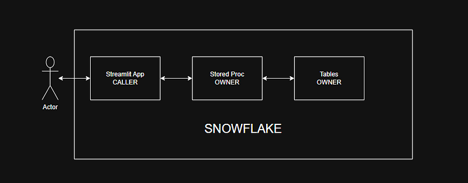
Rather than granting the viewer role direct access to the underlying tables, we wrap the data access logic inside a stored procedure. The procedure runs with EXECUTE AS OWNER, meaning it executes under the privileges of the procedure owner rather than the calling user. This allows STREAMLIT_VIEWER_ROLE to retrieve data without ever having direct visibility into the raw tables themselves a clean and controlled pattern for exposing only what is needed.
We then grant USAGE on the procedure to STREAMLIT_VIEWER_ROLE, giving the user the ability to call it without touching anything beneath it.
USE ROLE STREAMLIT_DEVELOPER;

CREATE OR REPLACE
PROCEDURE STREAMLIT_DEMO.
PUBLIC.GET_METER_READINGS()

RETURNS TABLE(METER_ID VARCHAR,
READING_VALUE FLOAT,
READING_TIME TIMESTAMP_NTZ)
LANGUAGE SQL
EXECUTE AS OWNER  ---
AS
$$
DECLARE
res RESULTSET DEFAULT (SELECT METER_ID,
READING_VALUE,
READING_TIME
FROM STREAMLIT_DEMO.PUBLIC.RAW_METER_READINGS);
BEGIN
RETURN TABLE(res);
END;
$$;
We can then test this pattern using the below commands
SET v_curr_user  = CURRENT_USER();
SET v_grant_stmt = CONCAT('GRANT ROLE
STREAMLIT_VIEWER_ROLE TO USER "',
$v_curr_user, '"');
EXECUTE IMMEDIATE $v_grant_stmt;

USE ROLE STREAMLIT_VIEWER_ROLE;
USE SECONDARY ROLES NONE;
SELECT *
FROM STREAMLIT_DEMO.PUBLIC.RAW_METER_READINGS;
CALL STREAMLIT_DEMO.PUBLIC.GET_METER_READINGS();
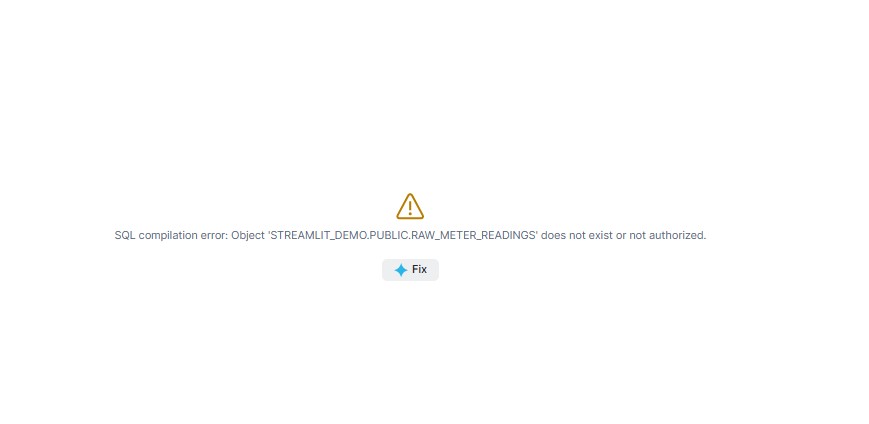
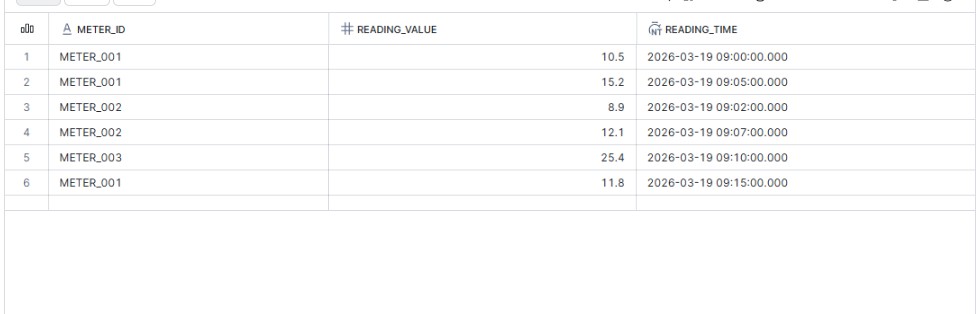
The SQL query will give an error but the proc will execute. This way we are sure we can retrieve the data via the procedure but we do not have select grants on the underlying table
5) Set Up the Business User & Restrict Access
We will create a dedicated business user and role and grant them access to the app by assigning permissions to the role they inherit. We accomplish this by granting the necessary USAGE privileges on the warehouse, database and schema to the STREAMLIT_VIEWER_ROLE, which is assigned to our user ensuring they inherit exactly the access they need and nothing more.
The role is also granted USAGE on the stored procedure we created earlier, giving the user the ability to call it without ever touching the underlying table. This maintains our security boundary so the user can retrieve data only through the controlled procedure, not through direct SQL queries.
To further tighten security, we restrict the user to a single interface using the ALLOWED_INTERFACES setting. This ensures the credentials cannot be used to log in through any other Snowflake access point, scoping the user entirely to the app and preventing any unintended back door into your Snowflake environment.
-- Setup script for Streamlit app access and user provisioning
USE ROLE SECURITYADMIN;

-- Step 1: Create a dummy user
CREATE OR REPLACE ROLE STREAMLIT_VIEWER_ROLE;

CREATE OR REPLACE USER STREAMLIT_USER
PASSWORD = 'streamlit@123'
DEFAULT_ROLE = 'STREAMLIT_VIEWER_ROLE'
DEFAULT_WAREHOUSE = <WAREHOUSE-NAME>
MUST_CHANGE_PASSWORD = FALSE;

GRANT ROLE STREAMLIT_VIEWER_ROLE
TO USER STREAMLIT_USER;

-- Step 2: Grant access to the Streamlit app's database/schema
GRANT USAGE ON WAREHOUSE <WAREHOUSE-NAME>
TO ROLE STREAMLIT_VIEWER_ROLE;
GRANT USAGE ON DATABASE STREAMLIT_DEMO
TO ROLE STREAMLIT_VIEWER_ROLE;
GRANT USAGE ON SCHEMA STREAMLIT_DEMO.PUBLIC
TO ROLE STREAMLIT_VIEWER_ROLE;

GRANT USAGE ON PROCEDURE
STREAMLIT_DEMO.PUBLIC.GET_METER_READINGS()
TO ROLE STREAMLIT_VIEWER_ROLE;

ALTER USER STREAMLIT_USER
SET ALLOWED_INTERFACES = ('STREAMLIT');
6) Set up the Streamlit app
Once this is done, create a new streamlit app and ensure it is running on container and not warehouse.
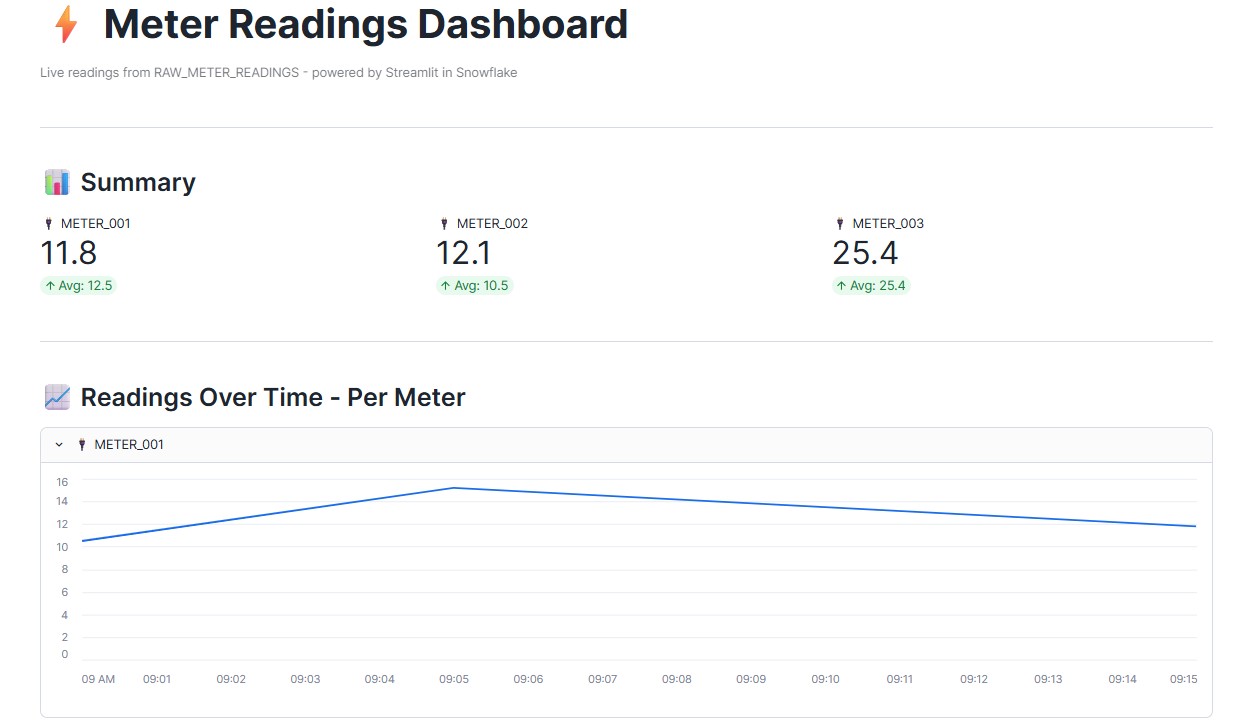
The app establishes its session using st.connection (“snowflake-callers-rights”), a caller’s rights connection that executes queries under the identity of the logged-in user rather than the app owner. This is precisely what enforces our security model. At runtime, the user can only do what their assigned role permits, making the role and procedure setup we defined earlier, the single source of truth for access control.
Once the app is deployed make sure it is running
# Meter Readings Dashboard refactored to use restricted caller's rights connection.
import streamlit as st
import pandas as pd
from snowflake.snowpark.context
import get_active_session
# ── Page config ───────────────────────────────────────────────────────────────
st.set_page_config(
page_title=" Meter Readings Dashboard",
page_icon="",
layout="wide"
)
# ── Title ─────────────────────────────────────────────────────────────────────
st.title(" Meter Readings Dashboard")
st.caption("Live readings from RAW_METER_READINGS -
powered by Streamlit in Snowflake")
st.divider()
# ── Get Snowflake connection (caller's rights) & load data ────────────────────
# Caller's rights sessions start with no warehouse — set one explicitly
conn = st.connection("snowflake-callers-rights")
session = get_active_session()
df = session.sql("CALL
STREAMLIT_DEMO.PUBLIC.GET_METER_READINGS()")
.to_pandas()
df.columns = df.columns.str.replace('"', '')
# Ensure correct types
df["READING_TIME"] =
pd.to_datetime(df["READING_TIME"])
df["READING_VALUE"] =
df["READING_VALUE"].astype(float)
# ── Summary KPI cards ─────────────────────────────────────────────────────────
meters = df["METER_ID"].unique()
st.subheader("
Meter Readings Dashboard",
page_icon="",
layout="wide"
)
# ── Title ─────────────────────────────────────────────────────────────────────
st.title(" Meter Readings Dashboard")
st.caption("Live readings from RAW_METER_READINGS -
powered by Streamlit in Snowflake")
st.divider()
# ── Get Snowflake connection (caller's rights) & load data ────────────────────
# Caller's rights sessions start with no warehouse — set one explicitly
conn = st.connection("snowflake-callers-rights")
session = get_active_session()
df = session.sql("CALL
STREAMLIT_DEMO.PUBLIC.GET_METER_READINGS()")
.to_pandas()
df.columns = df.columns.str.replace('"', '')
# Ensure correct types
df["READING_TIME"] =
pd.to_datetime(df["READING_TIME"])
df["READING_VALUE"] =
df["READING_VALUE"].astype(float)
# ── Summary KPI cards ─────────────────────────────────────────────────────────
meters = df["METER_ID"].unique()
st.subheader(" Summary")
cols = st.columns(len(meters))
for i, meter in enumerate(sorted(meters)):
meter_df = df[df["METER_ID"] == meter]
latest = meter_df.sort_values("READING_TIME")
.iloc[-1]["READING_VALUE"]
avg = meter_df["READING_VALUE"].mean()
cols[i].metric(
label=f"
Summary")
cols = st.columns(len(meters))
for i, meter in enumerate(sorted(meters)):
meter_df = df[df["METER_ID"] == meter]
latest = meter_df.sort_values("READING_TIME")
.iloc[-1]["READING_VALUE"]
avg = meter_df["READING_VALUE"].mean()
cols[i].metric(
label=f" {meter}",
value=f"{latest:.1f}",
delta=f"Avg: {avg:.1f}"
)
st.divider()
# ── Line chart per meter ──────────────────────────────────────────────────────
st.subheader("
{meter}",
value=f"{latest:.1f}",
delta=f"Avg: {avg:.1f}"
)
st.divider()
# ── Line chart per meter ──────────────────────────────────────────────────────
st.subheader(" Readings Over Time - Per Meter")
for meter in sorted(meters):
meter_df = df[df["METER_ID"] == meter].
set_index("READING_TIME")
with st.expander(f" {meter}",
expanded=True):
st.line_chart(
meter_df[["READING_VALUE"]],
use_container_width=True,
height=250
)
st.divider()
# ── Raw data table ────────────────────────────────────────────────────────────
with st.expander("
Readings Over Time - Per Meter")
for meter in sorted(meters):
meter_df = df[df["METER_ID"] == meter].
set_index("READING_TIME")
with st.expander(f" {meter}",
expanded=True):
st.line_chart(
meter_df[["READING_VALUE"]],
use_container_width=True,
height=250
)
st.divider()
# ── Raw data table ────────────────────────────────────────────────────────────
with st.expander(" View Raw Data"):
st.dataframe(df, use_container_width=True)
View Raw Data"):
st.dataframe(df, use_container_width=True)
7) Sharing the app with STREAMLIT_VIEWER_ROLE and testing it
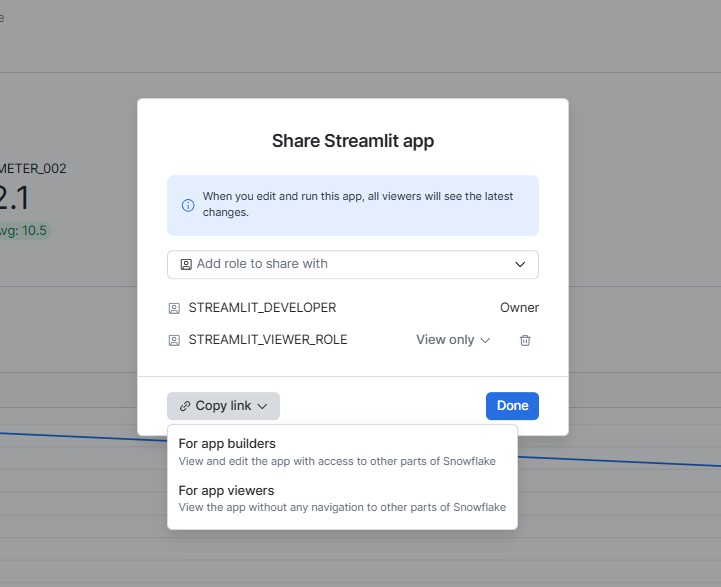
You can click on the share button on top and select the role you want to share the streamlit app with, STREAMLIT_VIEWER_ROLE in this case.
Once the app is shared it will appear in the list below and you can then grab the link from the Copy Link button and share it with the busines users
Once we have the link we can test by logging into the streamlit app
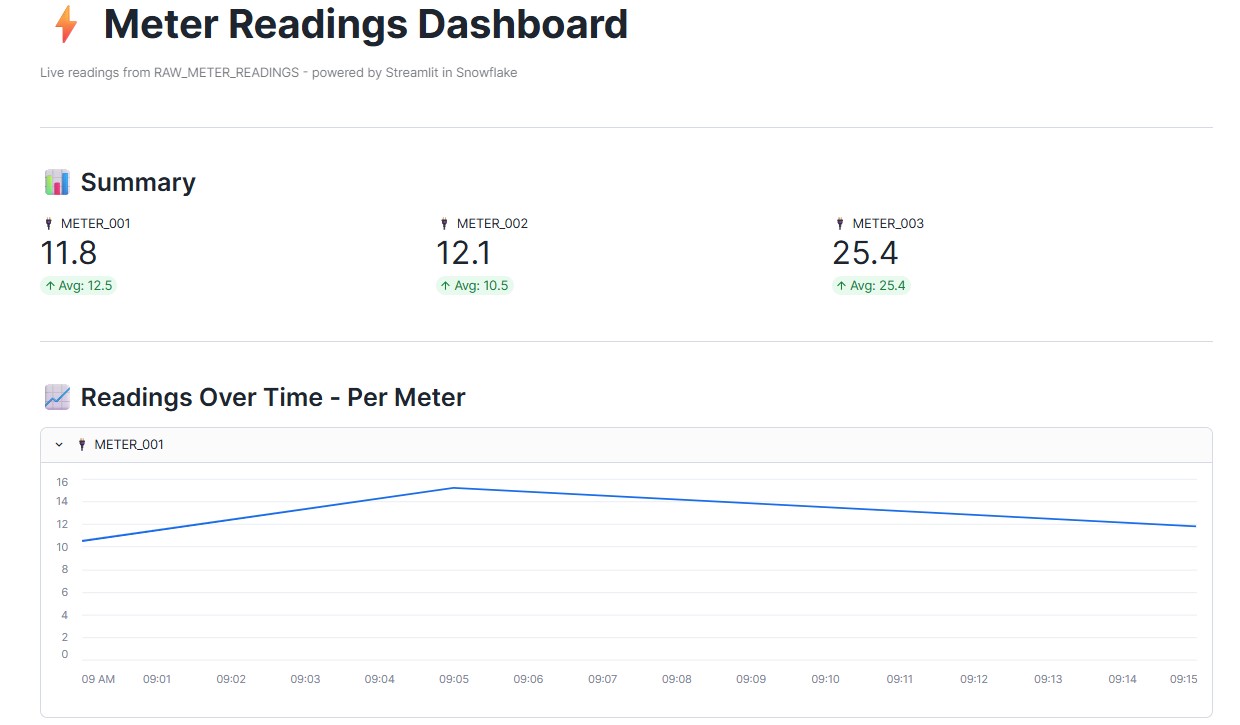
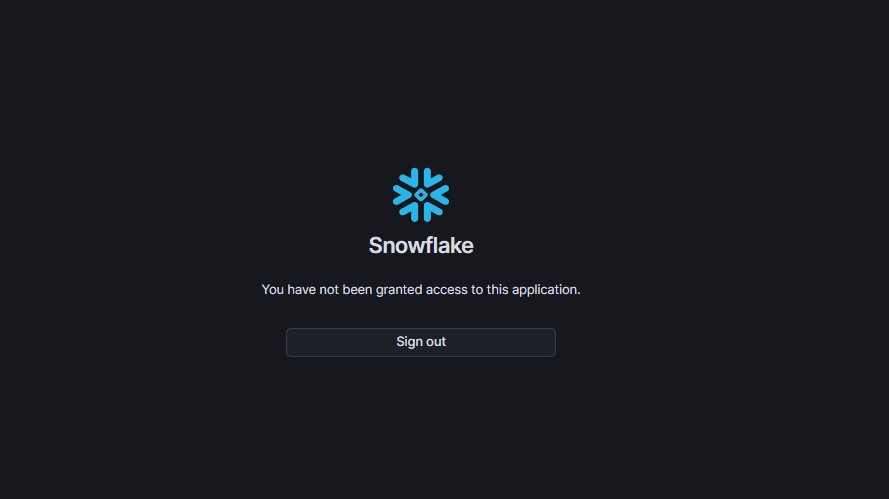
In addition to this we will now receive an error if we try to log in to snow sight using the STREAMLIT_USER. This confirms access is restricted as intended.
8) Scaling Beyond a Single Dashboard
In this demo, we worked with a single Streamlit app and a single app-viewer URL. But what happens in a real-world scenario where you have multiple dashboards serving different business teams , each with their own unique app-viewer URL?
This raises an interesting question worth thinking about:
How do you provide business users with a centralised entry point when each dashboard lives on its own separate URL? How do you avoid the chaos of managing and distributing multiple links across different teams?
A centralised app portal a single landing page where users can discover and launch all their permitted Streamlit apps would be a natural and much needed evolution of this feature.
Something to watch closely as Snowflake continues to develop this capability
9) Flow Diagram
10) Conclusion
Snowflake’s Sharing Streamlit in Snowflake feature bridges the gap between data teams and business users. With just a simple URL and a single line of SQL, you can now deliver a clean, secure and controlled dashboard experience without exposing your Snowflake environment.
This feature is now Generally Available.